

When I wrote my complete Google Antigravity beginner setup guide, Antigravity was still a two-pane IDE experiment where Agent Manager lived inside a modified VS Code window. Since May 2026, Google has completely re-architected the platform into Google Antigravity 2.0, pushing rapid releases all the way up to v2.33.0 in November 2026.
If you opened Antigravity recently after watching Google’s “Google Antigravity, Redesigned” showcase or Julian Goldie’s “Antigravity Swarm 2.32.0” walkthrough and felt like half the buttons moved, you are not imagining things. The old Agent Manager graduated into a standalone desktop command center called the Antigravity App, workspaces turned into multi-folder Projects, Scheduled Tasks became Automations, and the single chat box gained /swarm, /run-workflow Python orchestration, a Knowledge Work layout, Gemini Live Voice Mode, a built-in browser, and SSH host connections.
Think of this post as the upgraded 2.0 edition of our earlier tutorial. I have spent the last six months building client Astro sites, SEO/GEO audit pipelines, and multi-agent automations inside the Antigravity 2.0 App every single day. Below is every architectural change, every panel, and every button in the new UI, backed by official screenshots and practical workflows you can copy today.
Part 1: Need Installation, OS Steps & Model Benchmarks? Google Antigravity Tutorial: Complete Setup Guide for Beginners If you have not installed Antigravity yet or want deep comparisons of Gemini 4 Carbon, Gemini 4 Hydrogen, Gemini 4 Argon, Orchestrator mode, and Windows/Mac/Linux login fixes, start with Part 1 first, then return here for the full 2.0 UI and Manager Mode upgrade. Read the Beginner Setup Guide →Quick answer: Google Antigravity 2.0 separates the old Agent Manager into a standalone desktop app (now on v2.33.0) with multi-folder Projects, a dual
Software Engineering/Knowledge Worklayout toggle, a unifiedOverviewandSide Panel, Gemini LiveVoice Mode,/swarmmulti-agent message boards,/run-workflowPython orchestration, and remote SSH execution. Keep using the separate Antigravity IDE only when you want manual line-by-line code editing. Last updated November 18, 2026.
Table of Contents
What Changed in Google Antigravity 2.0? (The Great Split)
Google Antigravity 2.0 turned the original Agent Manager view into an independent, agent-first desktop application (Antigravity App) that runs completely outside a traditional code editor. While the original November 2025 release tucked Agent Manager inside a VS Code fork, Antigravity 2.0 treats managing autonomous agents as the primary desktop experience across macOS, Windows, and Linux.
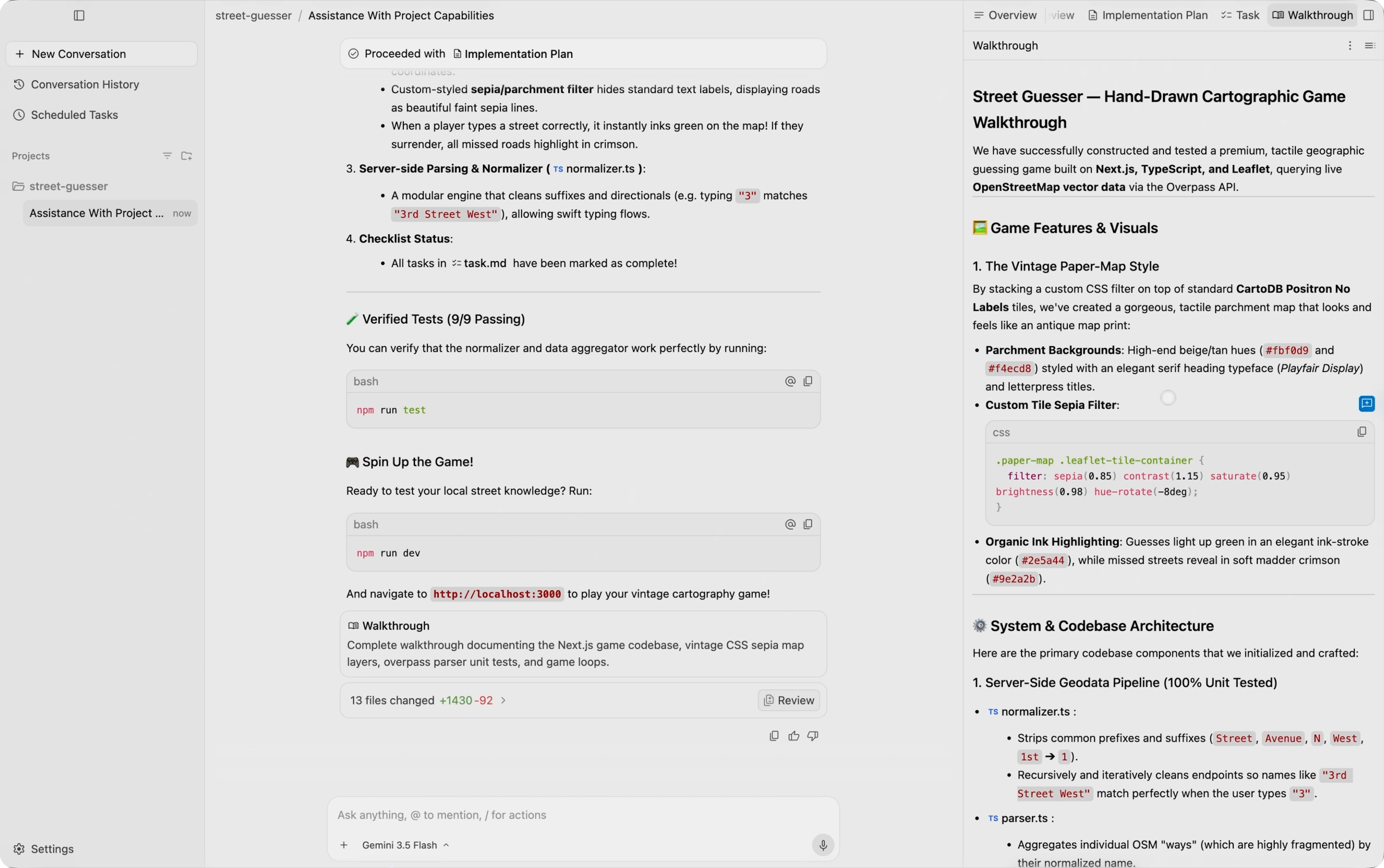
Why did Google split the product in May 2026? Two practical bottlenecks pushed the redesign:
- Non-coding work outgrew the IDE shell. According to the official Google Antigravity team (November 9, 2026), tens of thousands of Googlers outside software engineering across product, design, sales, finance, legal, marketing, and operations now use Antigravity weekly. Forcing marketers, founders, and researchers to stare at Git branches and file trees slowed down adoption.
- One repo per chat was too rigid. Real builds touch a frontend folder, a backend repo, a local brand-guidelines folder, and a Google Drive brief at the same time. Antigravity 2.0 replaced single-folder Workspaces with multi-folder Projects.
The 5 Surfaces of Antigravity Today
You no longer rely on one monolithic editor. Instead, Google maintains five connected surfaces that share your rules, skills, plugins, and conversation history:
- Antigravity App (v2.0 through v2.33.0): The standalone desktop command center (and web companion at
antigravity.google.com) covered in this guide. This is where Manager Mode lives now. - Antigravity IDE: The standalone VS Code-based editor for hands-on coding, Antigravity Tab autocomplete, Supercomplete, and inline
Cmd+Iedits. - Antigravity CLI (
agy): The fast terminal client (v1.2+throughv1.5+) supporting/swarm,/run-workflow,/btw,/voice live, and headless runs. - IDE Extensions (ACP): Official extensions bringing Antigravity agents into VS Code, Visual Studio, JetBrains IDEs, Android Studio, Zed, Xcode, and Eclipse.
- Antigravity SDK: The Python SDK for programmatic agent leasing, custom tools, and lifecycle hooks.
Antigravity 1.x Agent Manager vs. Antigravity 2.0 Standalone App
| Dimension | Antigravity 1.x (Original Agent Manager) | Antigravity 2.0 Standalone App (up to v2.33.0) |
|---|---|---|
| Primary Home | Second mode inside a VS Code editor window | Standalone desktop Electron app + web app |
| Directory Model | Single folder (“Workspace”) per conversation | Multi-folder Projects + standalone No Project chats |
| Interface Modes | Developer-only IDE styling | Software Engineering or simplified Knowledge Work layout |
| Multi-Agent Execution | Single agent + manual parallel chats (up to 5) | Dynamic Subagents, /swarm message boards, and /run-workflow Python orchestration |
| Side Panel (Auxiliary Pane) | Basic artifact preview | Unified Overview panel + tabbed Side Panel (Review Git VCS, Built-in Browser, Terminals, PDFs, Jupyter .ipynb, /btw) |
| Voice Interaction | Basic audio clip attachment | Live speech-to-text mic + two-way Gemini Live Voice Mode (v2.29.0+) |
| Scheduled Tasks | None in v1.x | Dedicated Automations page (Scheduled, Always on, Paused) with model picker |
| Remote Execution | Local machine only | Remote Control (phone/browser bridge), Remote Agents (cloud VMs), and SSH Hosts (v2.33.0) |
| Permissions & Hooks | Global preset | Per-conversation composer permissions + JSON lifecycle hooks + terminal sandbox |
Role-Based Onboarding and the Knowledge Work Layout
The Knowledge Work layout (shipped in v2.30.0 on November 9, 2026) strips away Git worktrees, terminal panes, and +/- diff counters so founders, marketers, designers, and analysts can run the exact same frontier agents in a clean workspace.
When you first sign in to a fresh Antigravity 2.0 install, onboarding no longer starts by asking you to pick a dark or light editor theme. Instead, it displays a Role Selection screen asking what best describes your work:
- Software Engineering
- Knowledge Work
- Data & Analytics
- Science
- Design
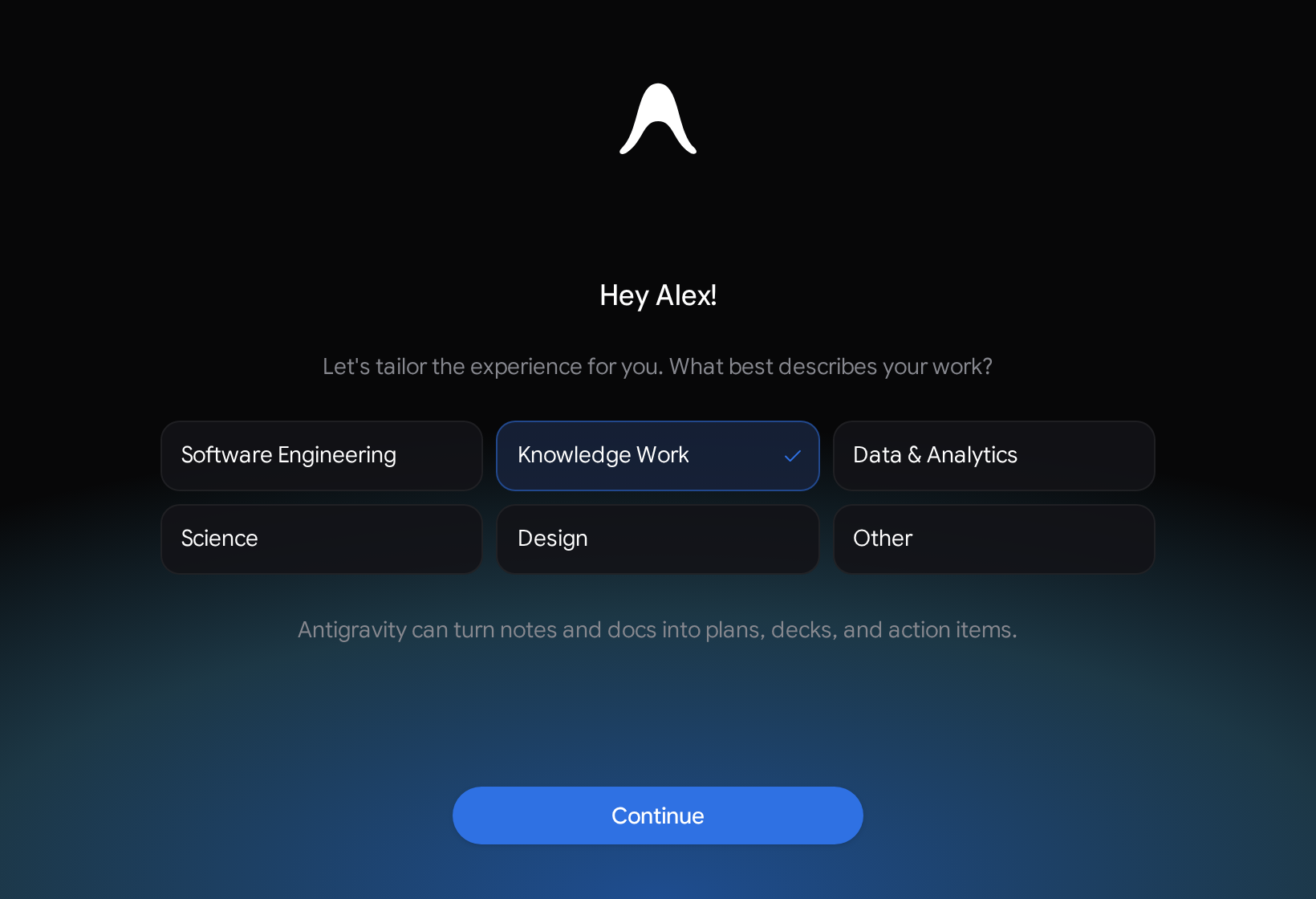
Picking a role automatically sets your default Interface Layout, installs recommended starter plugins, and populates tailored prompt cards on the Home screen.
How to Switch Between Knowledge Work and Software Engineering
You are never locked into your onboarding choice. Switching takes two clicks and applies instantly without restarting the app:
- Press
Cmd + ,on macOS (Ctrl + ,on Windows/Linux) or click Settings at the bottom-left of the sidebar. - Open General > Interface Layout.
- Toggle between Software Engineering and Knowledge Work.
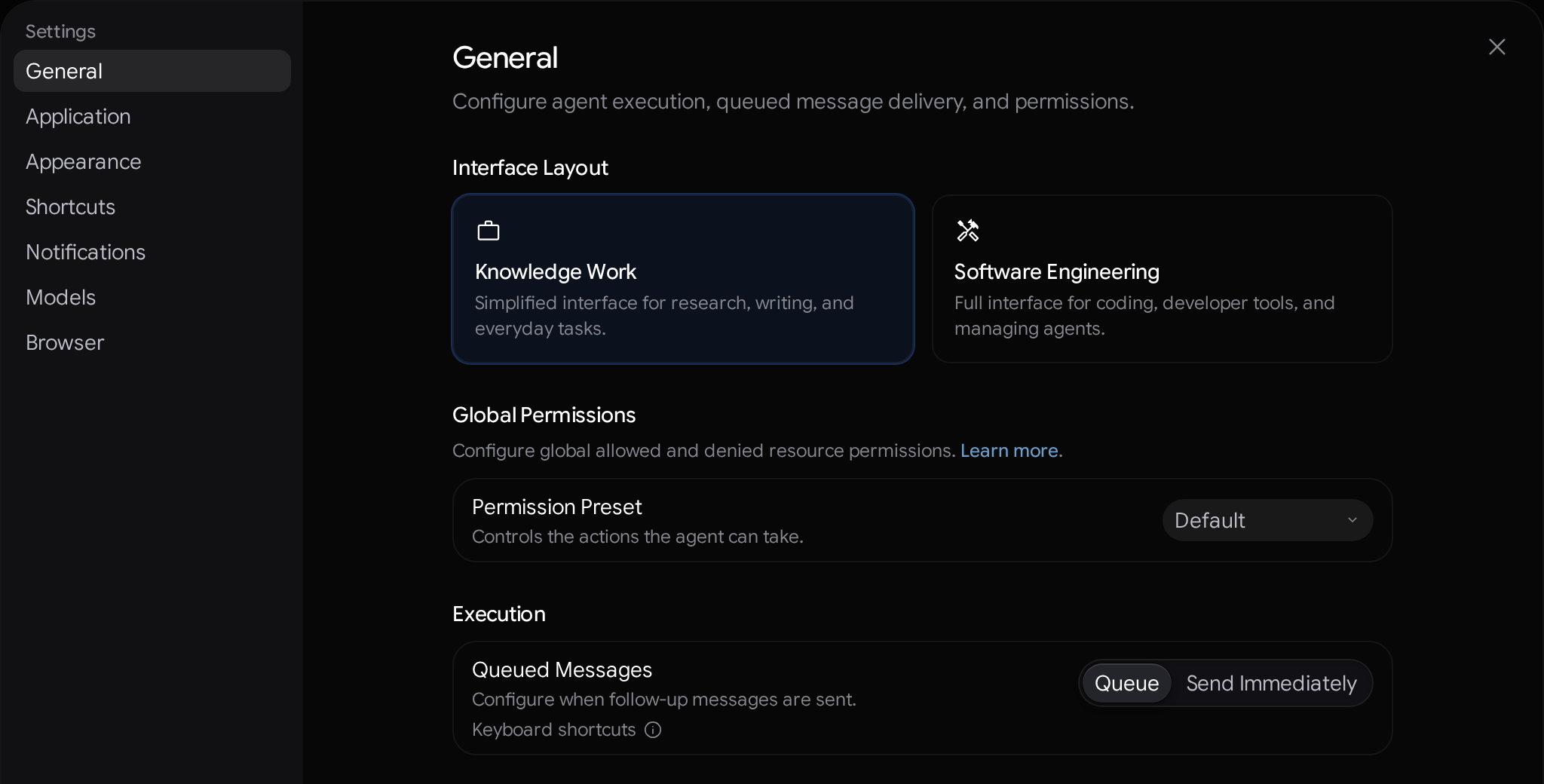
Note that Interface Layout switching is available on personal plans (Free, Google AI Plus, Google AI Pro, Google AI Ultra); business and enterprise managed accounts retain the Software Engineering workspace by default.
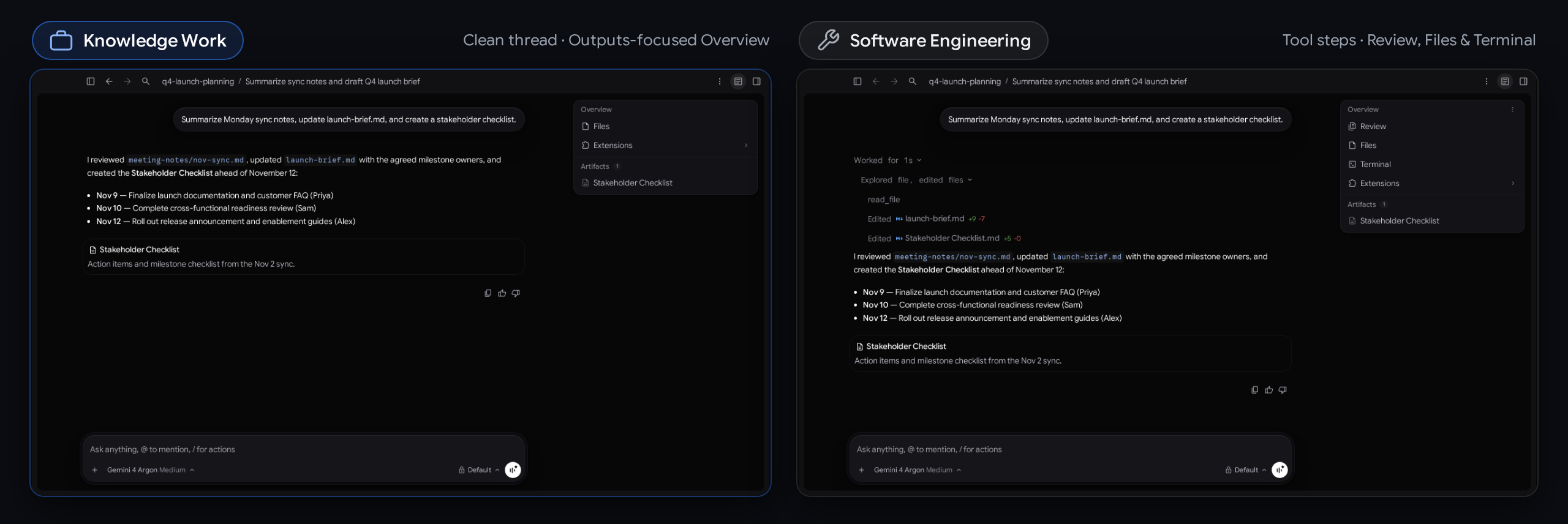
What Actually Changes Between the Two Layouts?
| UI Surface | Software Engineering Layout | Knowledge Work Layout (v2.30.0+) |
|---|---|---|
| Projects & Git | Shows Git branch pickers, Local vs. New Worktree mode, and IDE handoff buttons | Creates folder-backed projects directly without Git worktree prompts |
| Conversation Progress | Expandable tool groups, terminal command blocks, inline code diffs, and subagent cards | Collapses agent progress into a clean one-line status indicator that clears when finished |
| Permission Prompts | Displays raw terminal commands with syntax highlighting | Translates requested actions into plain-language summaries |
| Overview Panel | Open by default at top right; includes Review, Files, Terminal, Extensions | Stays tucked away until output exists; removes Review and Terminal rows; renames Files to Folders |
| Side Panel Focus | Diffs, code viewer, terminals, browser, artifacts | Documents (PDF, Word, Excel, PowerPoint, Google Workspace), Artifacts, Links, Uploads, and Extensions |
| Customizations Tab | Full developer breakdown of plugins, rules, skills, hooks, and MCP servers | Highlights installed Plugins upfront while skills, rules, and MCPs keep running quietly underneath |
How I use both layouts: When I am building an Astro website or running technical SEO schema audits on a repo, I keep Software Engineering on so I can inspect every Git diff in the Review pane. When I am researching competitors, drafting Oh, So AI newsletter editions, or organizing strategy docs with Notion and Drive plugins, I flip to Knowledge Work in two seconds to remove visual noise.
Complete Visual Tour of the Left Sidebar and Conversation Canvas
In v2.29.0 and v2.30.0, Google unified the sidebar and title bar under one continuous background while lifting the center conversation and right side panel into crisp rounded cards (using the new Onyx theme and Google Sans font by default).
Here is every control along the left edge and center canvas of Manager Mode:
1. Top Search Bar & Unified Command Palette (Cmd+K)
In v2.28.2, Google deleted the old, clunky Conversation History full-page view. In its place, the top-left Search button and keyboard palette index the full text of every prompt and agent reply across your projects.
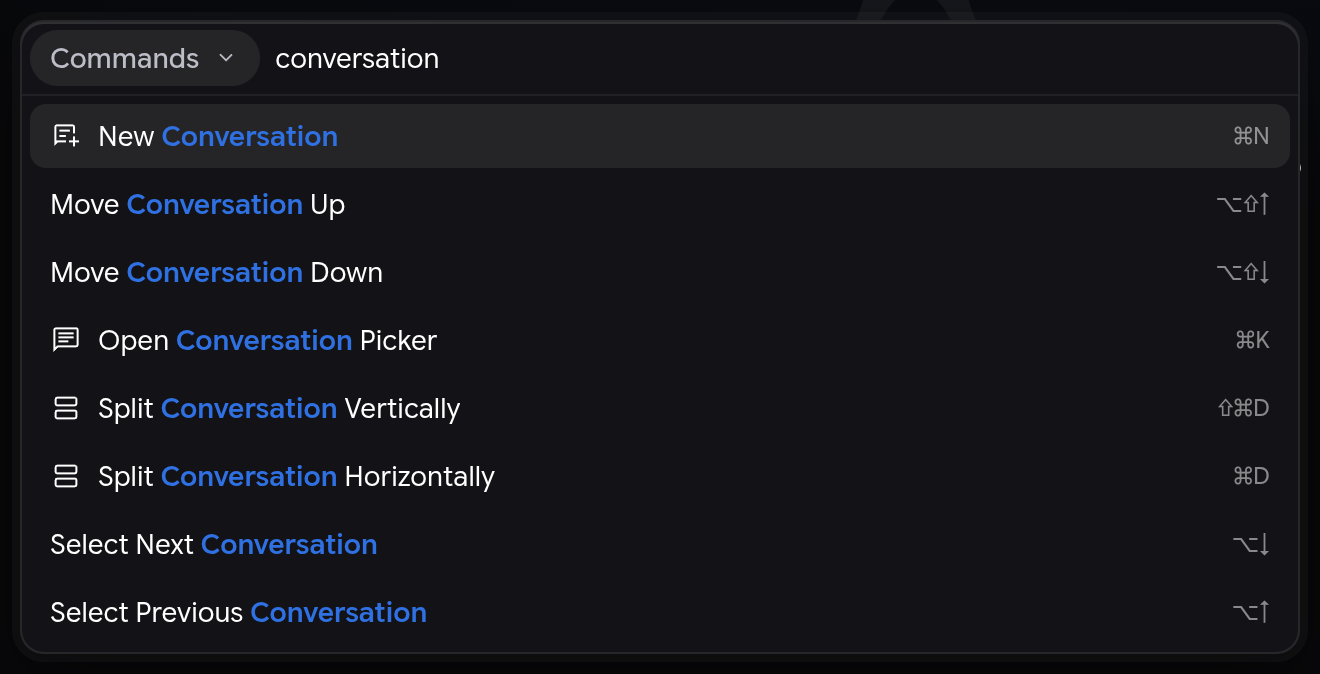
Use these four shortcuts to jump anywhere without touching your mouse:
Cmd + K(Ctrl + Kon Windows/Linux): Search full text of Conversations (includes a filter/sort menu forUnread,Automations,Archived,Last Updated, orLast Prompt).Cmd + P(Ctrl + P): Jump straight to Files inside your active project.Cmd + Shift + K(Ctrl + Shift + K): Switch Projects.Cmd + Shift + P(Ctrl + Shift + P): Run any App Command (such asConnect to SSH Host...orMark All as Read).
2. Left Sidebar Navigation & Project Controls
Moving down the left sidebar, you have four primary navigation anchors plus your organized thread list:
- New Conversation button: Opens a fresh session greeted at the top with your message box pinned to the bottom (
v2.29.0+), plus starter prompt suggestions tied to your role. - Automations button: Replaces the old Scheduled Tasks tab (
v2.21.1+) for cron jobs and one-shot background runs. - Customizations button: Opens your local
Installedplugins, skills, rules, and MCP servers alongside the live partner Marketplace (v2.18.1+). - Settings button (bottom-left): Opens global Appearance, Shortcuts, Browser, Notifications, Account, and Permissions controls.
Inside the Projects list below those tabs:
- Add Project (
+) & Unified Wizard (v2.31.0+): Lets you pick This Computer, Remote (for cloud-hosted GitHub repos), or SSH Host… (v2.33.0) in one place. Multi-folder projects let an agent inspect both your website frontend and backend API folder simultaneously. - Display Options & Drag-and-Drop (
v2.22.0&v2.24.0): Drag conversations between sections, sortPinnedand project threads independently (Last Updated,Last Prompt, orCustom Order), or toggle Auto Pin to automatically pin threads you message. - Hover Status Badges (
v2.23.0&v2.28.0): Instead of a generic spinner, sidebar items now display distinct icons forWorking,Background Command Running,Action Required(including when a subagent is waiting on approval!), andUnread, plus live GitHub PR status pills added inv2.33.0. - Keyboard Thread Management: Press
Option + Cmd + P(Alt + Shift + P) to pin,Cmd + Option + A(Ctrl + Alt + A) to archive, andOption + Shift + Up/Down(Alt + Shift + Up/Down) to reorder chats. - Right-click / Overflow Project Menu: Includes Reveal in Finder (or Show in File Explorer), Project Settings (isolated permissions, sandbox toggles, and
env-setup.sh), and Delete Project.
3. The Center Conversation Canvas: Bubbles, Navigator Rail & Themes
Inside the main chat card, three visual updates make long multi-hour builds vastly easier to scan:
- Right-Aligned Message Bubbles (
v2.30.0): Your prompts now render as distinct chat bubbles on the right side of the canvas, visually separating human instructions from the agent’s full-width responses, tables, and artifacts. - Conversation Navigator Rail (
v2.28.1&v2.29.0): Along the left edge of every conversation sits a slim vertical rail with one dot per turn. Hovering over a dot shows your exact prompt, a reply preview, and timestamp. Long threads collapse into labeled chapters with short AI-generated titles so you can jump back two hours without endless scrolling. - Grouped
"Worked for..."Action Rows (v2.21.1&v2.30.0): Instead of flooding your chat with 40 separate file-read and terminal boxes, Antigravity collapses consecutive file reads, edits, commands, and subagent completion notices into one tidy summary row that auto-collapses once the agent finishes its reply. - Expanded Themes & Typography (
v2.21.1–v2.33.0): UnderSettings > Appearance, you can now pick Onyx (default), Nord (v2.33.0), Everforest Light/Dark (v2.32.0), Gruvbox Material, or Legacy Light/Dark; switch fonts between Google Sans, Inter, and System UI; set interface font size to 12px, 14px, or 16px (v2.31.0); and set Conversation Width to Narrow, Default, Wide, or Fill (v2.29.0).
Every Button in the Bottom Message Box (Composer Bar) Explained
The bottom composer bar in Antigravity 2.0 packs context attachments, model routing, agent personas, per-chat security presets, and voice interaction into one compact footer, while docking active permission prompts directly above it.
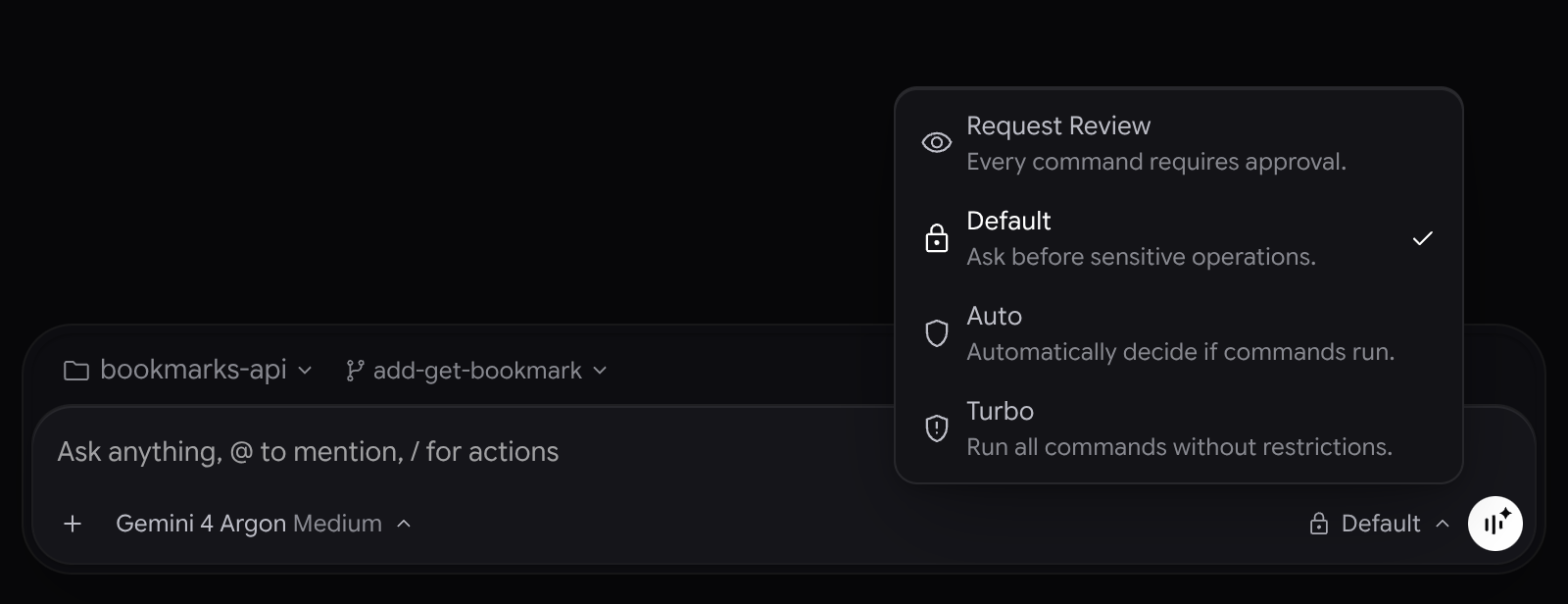
Let’s walk through every button from left to right inside the composer:
1. The + (Add Context) Button
Clicking + opens the context menu for the current message. Between v2.16.0 and v2.33.0, Google removed almost every restrictive format gate:
- Files & Folders: Add entire folders directly from the
+menu (v2.23.0). - Any File Type (up to 20 MB) & Media (up to 200 MB): Attach
.ziparchives (the agent unpacks them automatically), design files,.amrvoice recordings (v2.33.0), videos, or logs. Audio and video playback in the side panel supports files up to 200 MB (v2.33.0). - Native Microsoft Office Files (
v2.16.0): Drag and drop Word (.docx), Excel (.xlsx), and PowerPoint (.pptx) files straight into the composer; Gemini models read them natively. - Mentions Shortcut: Trigger
@mentions directly from+without typing.
2. The @ Mention Menu & Inline Quote Button
Typing @ in the composer opens a fuzzy-search context picker so the agent starts from the exact file, rule, or past decision instead of burning tokens searching for it.
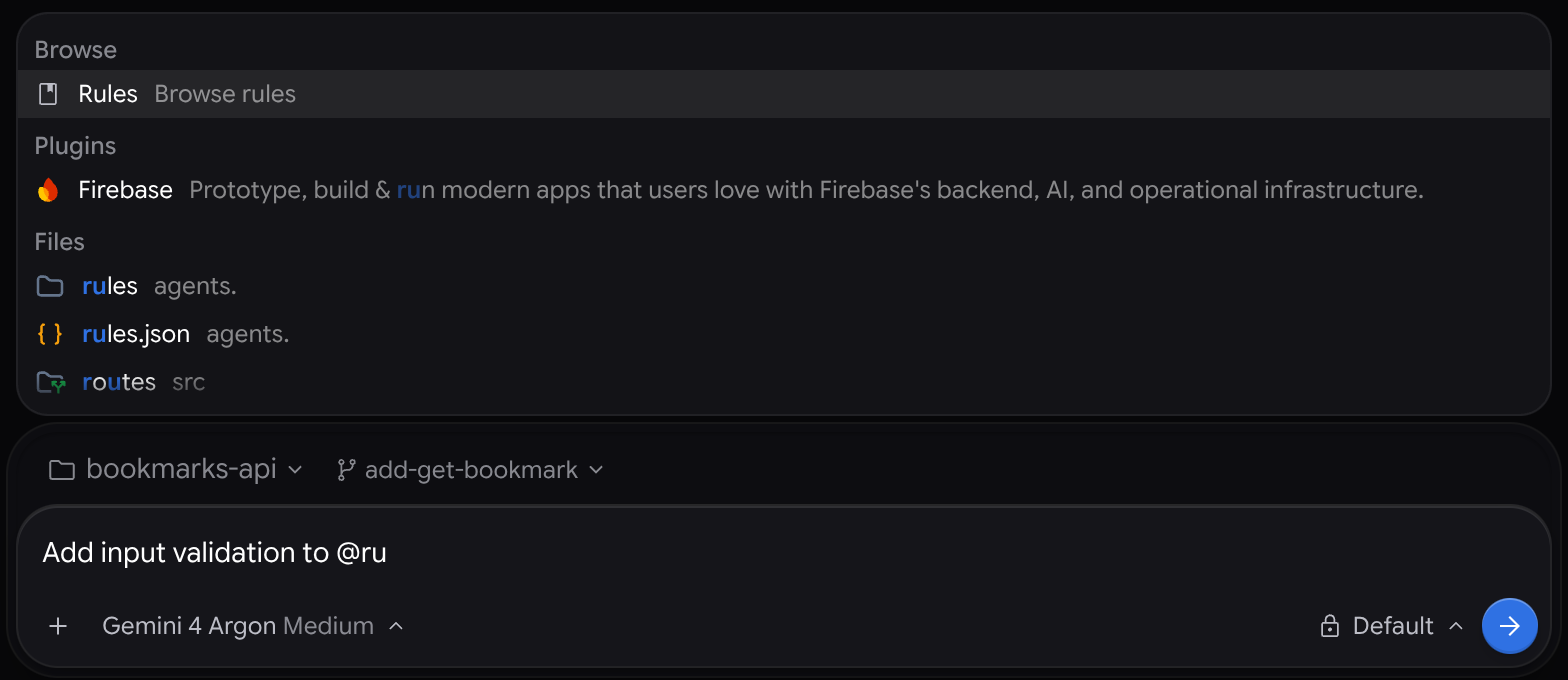
@Files and Folders: Fuzzy matching (@bkmkfindsbookmarks.js). Pasting an exact path puts that file at the top of the list (v2.30.0).@rules:: Injects any manual global or workspace rule (for example, a release checklist or ByHarshal’s SEO/GEO quality rubric) on demand.@conversation:: Searches past conversation titles and messages (@conversation:rate limiter) so you can pass prior architecture decisions as a clickable chip into a new thread.@Plugins: Displays the plugin’s logo and hover description (v2.30.0).
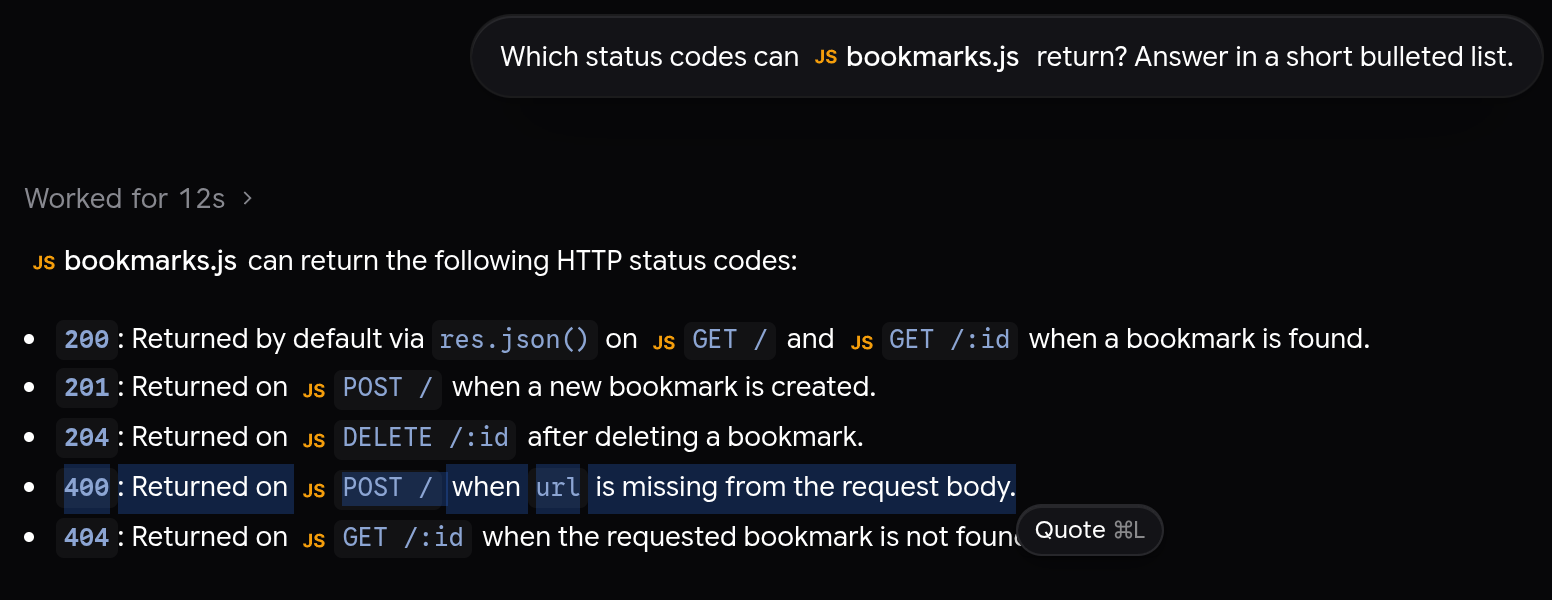
Need to challenge or refine just two sentences from a long reply or a webpage? Highlight any text in a response, diff, file, artifact, or the built-in browser and click the floating Quote button (or press Cmd+L / Cmd+I on Mac, Ctrl+L / Ctrl+I on Windows/Linux). It drops the exact selection into your message box as a neat chip.
3. The / Slash Command Menu
Typing / pops open Antigravity’s built-in and plugin-provided slash commands (v2.18.1 added plugin badges and hover descriptions). Notice that rich formatting works right inside the message box too: in v2.30.0, typing - or 1. creates real bulleted and numbered lists (Shift+Enter for the next item, Tab to indent), and Cmd+Shift+V (Ctrl+Shift+V) pastes plain text.
4. The Model & Custom Agent Selector
In v2.29.0, Google merged the Custom Agent picker straight into the Model selector menu (and in v2.32.0, made the dropdown dynamically expand to fill your screen height with a Refresh button). From this single menu you can:
- Choose Gemini 4 Carbon, Gemini 4 Hydrogen, Gemini 4 Argon, Orchestrator (Carbon), Orchestrator (Argon), Gemini 3.8 Flash, Claude Opus 5.5, or Claude Sonnet 5.5 (note: in
v2.31.2andv2.32.1, Google Cloud Application Default Credentials also expose Carbon and Hydrogen at low, medium, and high levels). - Adjust the reasoning effort level (
Low,Medium,High,Extra). - Select any custom persona defined in
.agents/(which inherits customizations viainheritCustomizations).
5. The Per-Conversation Permissions Picker & Docked Cards
Look for the shield/permissions pill in the composer footer (v2.23.0). Under v2.30.0, changing the permission preset (Auto, Default, Request Review, Strict, or Proceed in Sandbox) applies only to the active conversation, so running an exploratory build in Auto does not weaken guardrails on a sensitive production repo in another tab.
Equally helpful for daily flow: v2.26.0 changed permission requests and multi-question /grill-me cards so they dock neatly above the message box instead of hiding it. You can keep drafting or queuing your next prompt (or even press Cmd+Arrow / bind a custom Submit Prompt key in v2.32.0) while a request waits. Plus, in v2.33.0, messages sent immediately while the agent is still typing stay steady and calm without pulsing or jumping the layout above them.
6. Project / Git Worktree Selector (Software Engineering Layout)
When inside a project in Software Engineering layout (v2.29.0+), a single unified selector right by the composer lets you pick Local (edit active folders directly) or New Worktree (spin up an isolated Git branch checkout so parallel agents never collide on files), search branches when a repo has over 15 branches, or jump into remote GitHub repos.
7. Dictation Microphone vs. Gemini Live Voice Mode Button
There are now two distinct voice buttons in the bottom-right corner of the message box (v2.29.0+):

- Dictation Microphone Icon (
Ctrl+M): Transcribes what you say live into text inside the message box so you can edit or verify technical filenames before hitting Enter. (For why speaking prompts at 130+ WPM beats typing at 40 WPM, read my breakdown on voice dictation for vibe coding.) - Start Voice Mode Button (Round Sound-Bars Icon): Appears automatically when the message box is empty (or next to the Stop button while the agent runs). Powered by Gemini Live, clicking it opens a two-way spoken call inside your conversation.
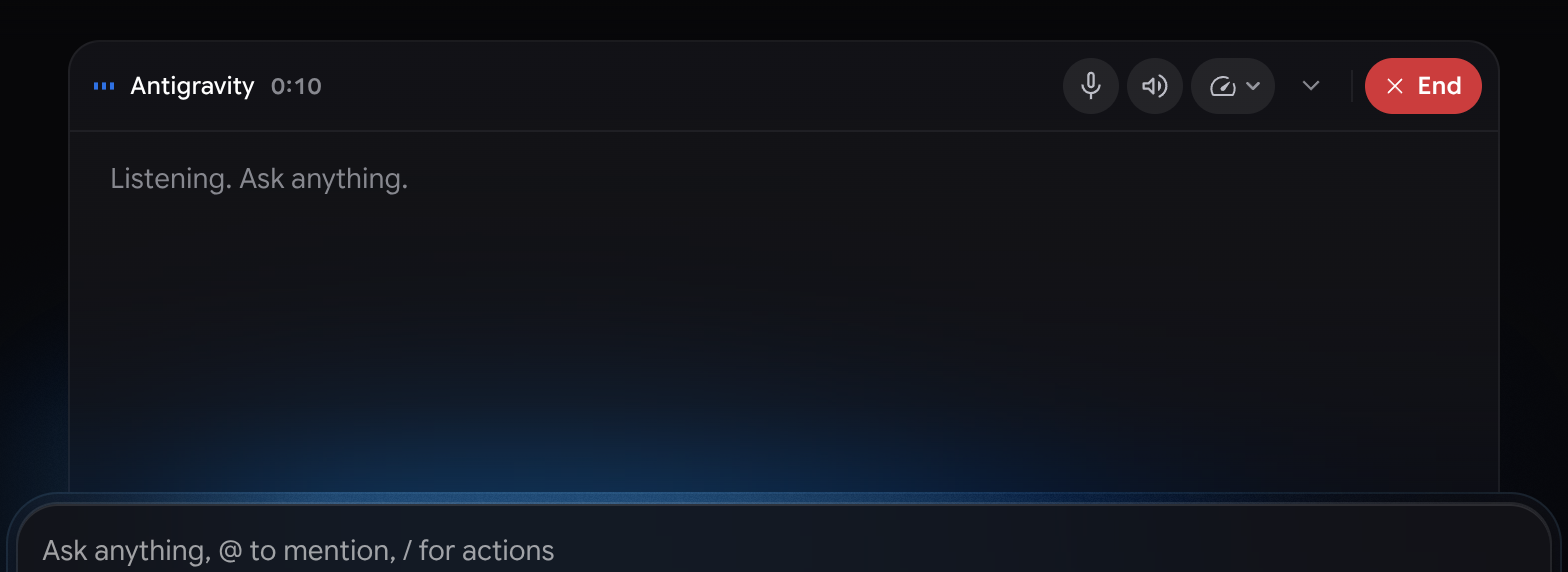
During a Voice Mode call, you can steer a running task out loud, answer multi-choice question cards and permission approvals by voice without touching the mouse (v2.31.0), pick from 9 voices, adjust speaking speed between 0.75x and 2x, and get a short written call summary card when you hang up (v2.31.0).
The Top-Right Overview Panel and Side Panel (Auxiliary Pane)
The right half of Antigravity 2.0 houses two tightly linked surfaces introduced and refined between v2.11 and v2.33.0: the Overview Panel (your conversation table of contents) and the Side Panel (where diffs, files, terminals, subagents, and live web previews open as tabs).
1. The Top-Right Overview Panel (Cmd+Option+O)
Every conversation now shows an Overview card in the top-right corner (Toggle Overview Panel button, or Cmd+Option+O on Mac / Ctrl+Alt+O on Windows/Linux). When your window gets narrow, it collapses cleanly and slides over the chat on demand.
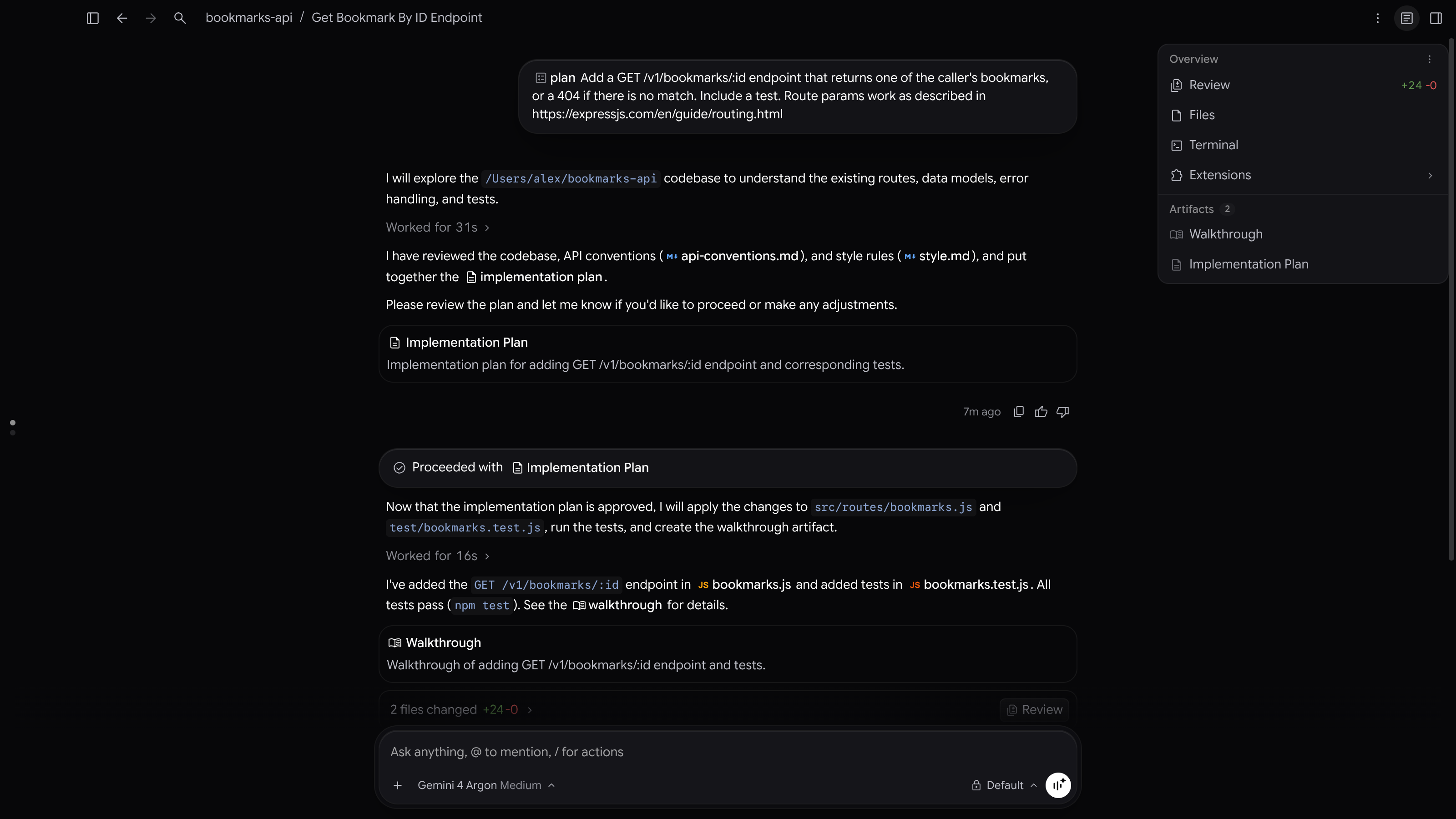
Inside the Overview panel:
- Top Action Rows: One-click openers for Review (showing live
+added / -deletedGit line totals fromv2.29.0), Files (renamed Folders in Knowledge Work), Terminal (click repeatedly to launch multiple tabs), and Extensions (plugin UI panes). - Pull Requests Section (
v2.33.0): Displays live GitHub pull request status pills and hover cards linked from your thread. - Dynamic Output Sections: Automatically groups Subagents, Background Tasks (with hover
Cancel Taskbuttons), Goals, Documents (PDFs, Office files, Google Workspace links), Artifacts (Implementation Plans, Walkthroughs), Links, Modified Files, and Uploads. Click the three-dot Customize Sections button to pin or hide any section globally (v2.24.0).
2. The Tabbed Side Panel (Cmd+Shift+M & Cmd+Shift+T)
Clicking any item in Overview opens it inside a tab in the Side Panel next to your chat. Two shortcuts here save constant mouse travel:
- Maximize Side Panel (
Cmd+Shift+M/Ctrl+Shift+M): Slides the panel over the conversation at full width instead of squeezing your text (v2.24.0). - Reopen Closed Tab (
Cmd+Shift+T/Ctrl+Shift+T): Restores a closed file, browser tab, or diff at its exact scroll position (v2.28.0). - New Tab Page (
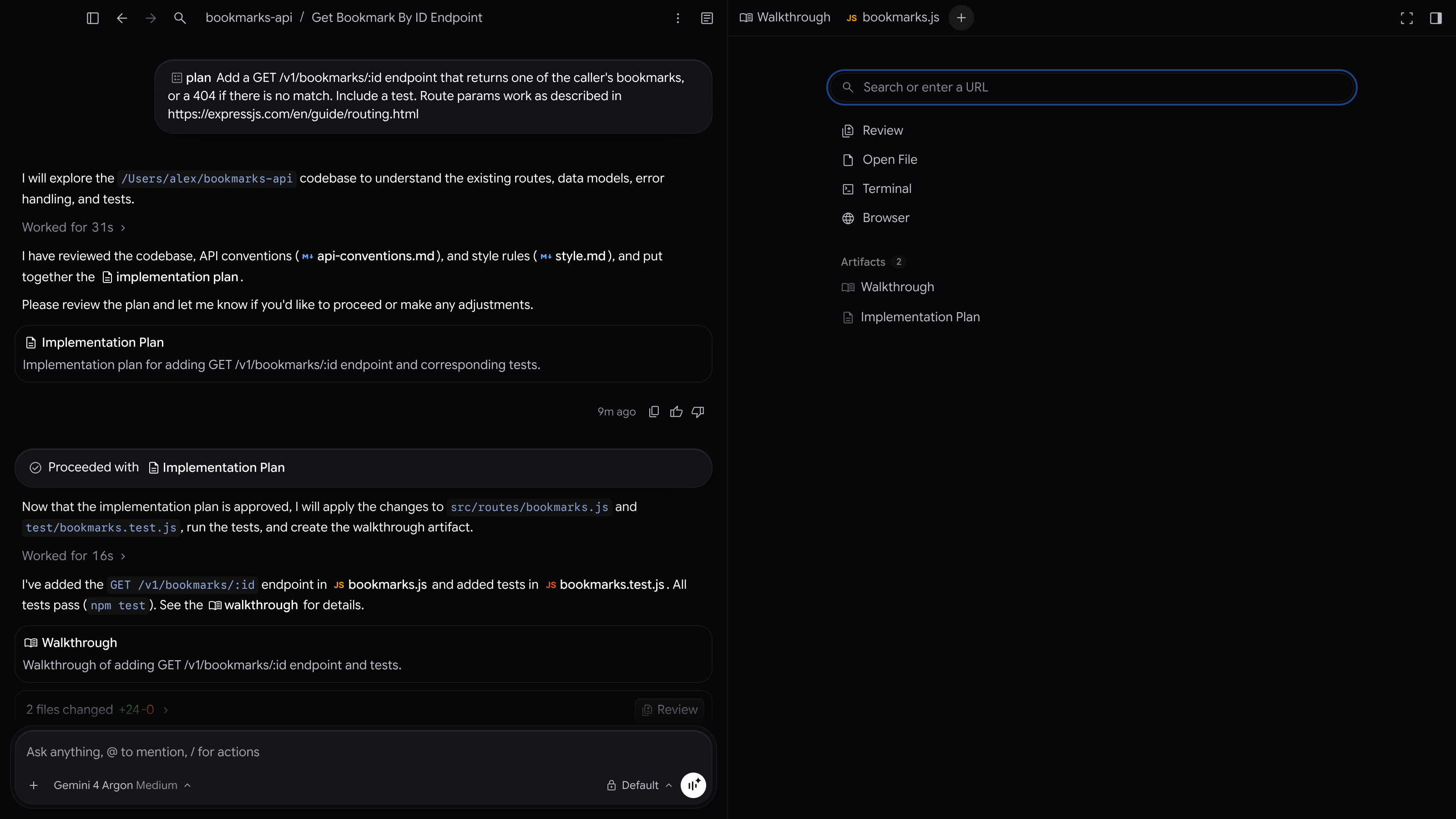
v2.29.0): Clicking+in the side panel tab strip opens a clean New Tab page where you can enter any URL, search Google, or drag links straight from the chat.
3. The Review & Git VCS Pane
One of the best upgrades in Antigravity 2.0 is never having to bounce back to VS Code or Sourcetree just to verify what an agent (or an external script) changed.
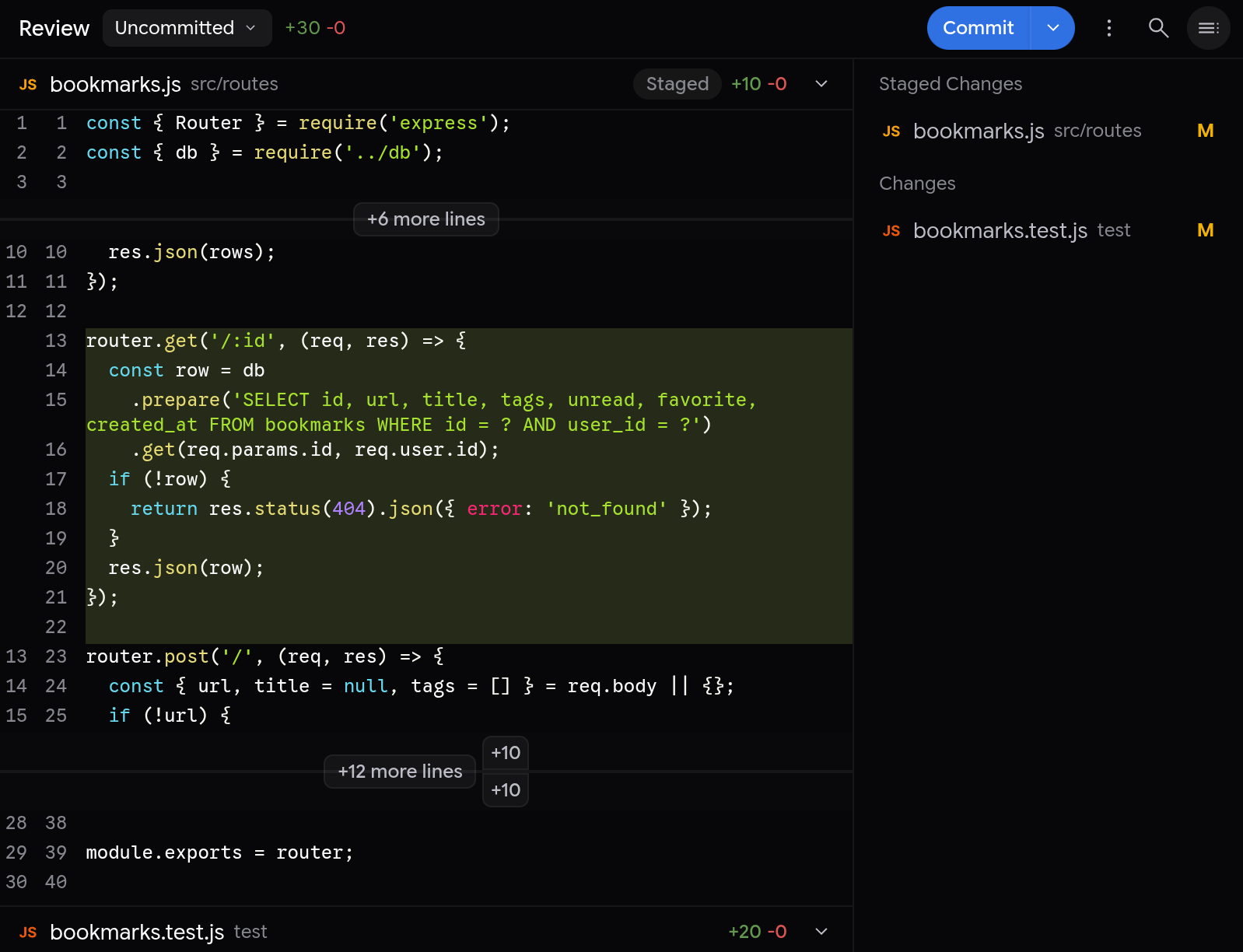
Key controls inside the Review tab:
- Three-Way Filter Dropdown: Switch between Uncommitted (staged/unstaged working tree), Branch (every change since
origin/main), and Agent Edits (only files touched by this conversation), or clickReviewon a single chat card (2 files changed) to filter down to one turn. - Word & Character Diffs (
v2.28.0) + Image Diffs (v2.7.1): Highlights exact modified tokens inside lines, preserves syntax colors, and renders side-by-side visual comparisons for changed images and SVGs. - View Toggles (
⋮Menu): Toggle View Split Diff vs. View Stacked Diff, Hide Whitespace Changes, Collapse All, orCmd+Facross every diff (v2.11+fixed search across collapsed files). - Line-by-Line Feedback & Git Commit: Hover any line to click
+(Add inline comment), type a correction, and send targeted review notes back to the agent. When satisfied, stage files, write a commit message, and commit right inside the pane.
4. The Built-in Browser Tab (v2.28.0 to v2.33.0)
Instead of kicking every localhost link or web research source to an external Chrome window, Antigravity 2.0 embeds a full built-in browser inside a Side Panel tab (v2.28.0):
- Auto-Widening Layout: Automatically widens the side panel when a web tab opens so sites render in desktop view rather than cramped mobile columns.
- Security & Download Gate (
v2.28.0,v2.31.0,v2.32.0): Shows TLS certificate status, lets you clear per-site cookies from the address bar, isolates cross-site iframes as signed-out and hidden from agent screenshots (v2.32.0), and pauses any browser-agent download until you explicitly click Approve (v2.31.0). - In-Page Find & Right-Click Quote (
v2.30.0&v2.33.0): PressCmd+F(Ctrl+F) inside the browser toolbar, or right-click highlighted webpage text to Comment or Quote straight into your prompt. - Open Behavior:
Cmd+Click(or middle-click) opens links in a background tab;Shift+Clickopens in your external system browser.
5. Built-in Viewers: PDF, Jupyter Notebooks, Media & /btw Side Questions
- Native Jupyter Notebook Viewer (
v2.29.0): Opens.ipynbfiles directly inside the Side Panel with rendered code cells, Markdown, tables, and chart outputs. - Fast PDF Viewer + Export Markdown as PDF (
v2.19.1,v2.28.0,v2.33.0): Reads local and artifact PDFs natively (with deferred text-layer loading inv2.33.0so huge spec docs scroll without lag), and lets you export any rendered Markdown artifact or file as a clean PDF from its overflow menu. - Full-Screen Media Viewer (
v2.23.0&v2.24.0): Click any image, audio file, or video to zoom/pan, holdSpacefor2xplayback speed, or press,and.to step frame-by-frame. - Multi-Turn
/btwSide Question Tab (v2.32.2&v2.33.0): Need to check where a helper function lives while your main agent is in the middle of a 10-minute build? Type/btw Where is our schema helper defined?and hit Enter. It forks your context into a dedicated Side Question tab in the side panel with read-only file and search tools, answers without touching your main thread’s context window, supports multi-turn follow-ups (v2.32.2), and offers an Insert into main conversation button (v2.33.0).
Master Table of Antigravity 2.0 UI Buttons and Shortcuts
Bookmark this table as your quick visual map for every major UI button and keyboard shortcut in the Antigravity 2.0 App (updated through v2.33.0).
| UI Button / Control | Location in UI | macOS Shortcut | Windows / Linux Shortcut | What It Does |
|---|---|---|---|---|
| Search Conversations | Top-left sidebar | Cmd + K | Ctrl + K | Full-text search across all chats, prompts, and replies (v2.28.2+) |
| Search Files / Switch Project | Command Palette | Cmd + P / Cmd+Shift+K | Ctrl + P / Ctrl+Shift+K | Jump to project files or switch multi-folder Projects |
| Command Palette | Global | Cmd + Shift + P | Ctrl + Shift + P | Run any app action (SSH Host, Mark All Read, Reload) |
| New Conversation | Left sidebar top | Cmd + N | Ctrl + N | Start a new chat in active project or standalone mode |
| Toggle Sidebar | Top-left corner | Cmd + B | Ctrl + B | Collapse or expand the Projects & Conversations sidebar |
| Pin / Archive Conversation | Sidebar hover menu | Opt+Cmd+P / Cmd+Opt+A | Alt+Shift+P / Ctrl+Alt+A | Pin important builds or archive finished threads |
| Reorder Conversation | Sidebar | Opt + Shift + Up/Down | Alt + Shift + Up/Down | Move active conversation up/down or into Pinned section |
| Toggle Overview Panel | Top-right of chat | Cmd + Option + O | Ctrl + Alt + O | Show/hide changed lines, Artifacts, Subagents, and PRs |
| Maximize Side Panel | Side panel top bar | Cmd + Shift + M | Ctrl + Shift + M | Expand Review, Diff, Browser, or Preview full-width over chat |
| Reopen Closed Panel Tab | Side panel tab bar | Cmd + Shift + T | Ctrl + Shift + T | Restore closed file, diff, or browser tab with scroll state |
+ Add Context | Composer bottom-left | Click + button | Click + button | Attach files (20 MB), media (200 MB), folders, .zip, Office docs |
@ Mention / Quote | Composer / text highlight | Cmd + L or Cmd + I | Ctrl + L or Ctrl + I | Tag @Files, @rules:, @conversation:, @Plugins, or quote text |
/ Slash Commands | Composer input | Type / | Type / | Invoke /swarm, /run-workflow, /plan, /btw, /grill-me, /compact |
| Model & Agent Picker | Composer footer | Click model dropdown | Click model dropdown | Pick Gemini 4 Carbon/Hydrogen/Argon, Orchestrator, Claude 5.5, or Custom Agent |
| Permissions Preset Pill | Composer footer | Click shield menu | Click shield menu | Set Auto, Default, Request Review, Strict, or Sandbox per conversation |
| Voice Dictation Mic | Composer bottom-right | Ctrl + M | Ctrl + M | Live speech-to-text directly into the message box |
| Start Voice Mode | Composer (when empty) | Click waveform icon | Click waveform icon | Start real-time two-way Gemini Live voice call with agent (v2.29.0+) |
| Settings & Layout Switch | Sidebar bottom-left | Cmd + , | Ctrl + , | Switch Knowledge Work vs. Software Engineering, themes, and shortcuts |
| Paste Plain Text | Composer input | Cmd + Shift + V | Ctrl + Shift + V | Paste unformatted text without breaking prompt chips (v2.24.0+) |
| Cancel Active Turn | Composer / Stop | Cmd + D / Esc | Ctrl + D / Esc | Interrupt a running agent turn cleanly (v2.33.0 fixed Ctrl+D on Win/Linux) |
Multi-Agent Orchestration: Subagents, /swarm, and Dynamic Workflows
Antigravity 2.0 gives you four distinct ways to split work across multiple agents: Orchestrator Mode, Dynamic Subagents, /swarm (launched in v2.31.0), and Dynamic Workflows (/run-workflow, launched in v2.32.0). Choosing the right one determines both your speed and how fast you burn plan quota.
1. Dynamic Subagents & Live Status Cards (v2.16.0 to v2.33.0)
Whenever your main agent delegates a self-contained investigation or parallel file edit, it spins up a Dynamic Subagent with a clean, isolated context window so test logs and searches do not bloat your main chat.
- Workspace Isolation: Subagents can share your working folder (
inherit), clone an isolated Git branch (branch), or share underlying repo storage (share). - Live Cards & Direct Messaging: Subagents appear as one-line live cards (
v2.16.0&v2.23.0). You can hover to stop a runaway subagent, click to open its full conversation in the Side Panel, or type directly in the subagent’s own message box (v2.19.1) to steer it without going through the main agent.
2. /swarm: Real-Time AI Agent Teams on a Shared Board (v2.31.0 & v2.33.0)
Featured in Julian Goldie’s “Antigravity Swarm 2.32.0” demo and officially added in v2.31.0 (then expanded to business and enterprise accounts in v2.33.0), /swarm turns your conversation into a Coordinator managing a live team of named specialists.
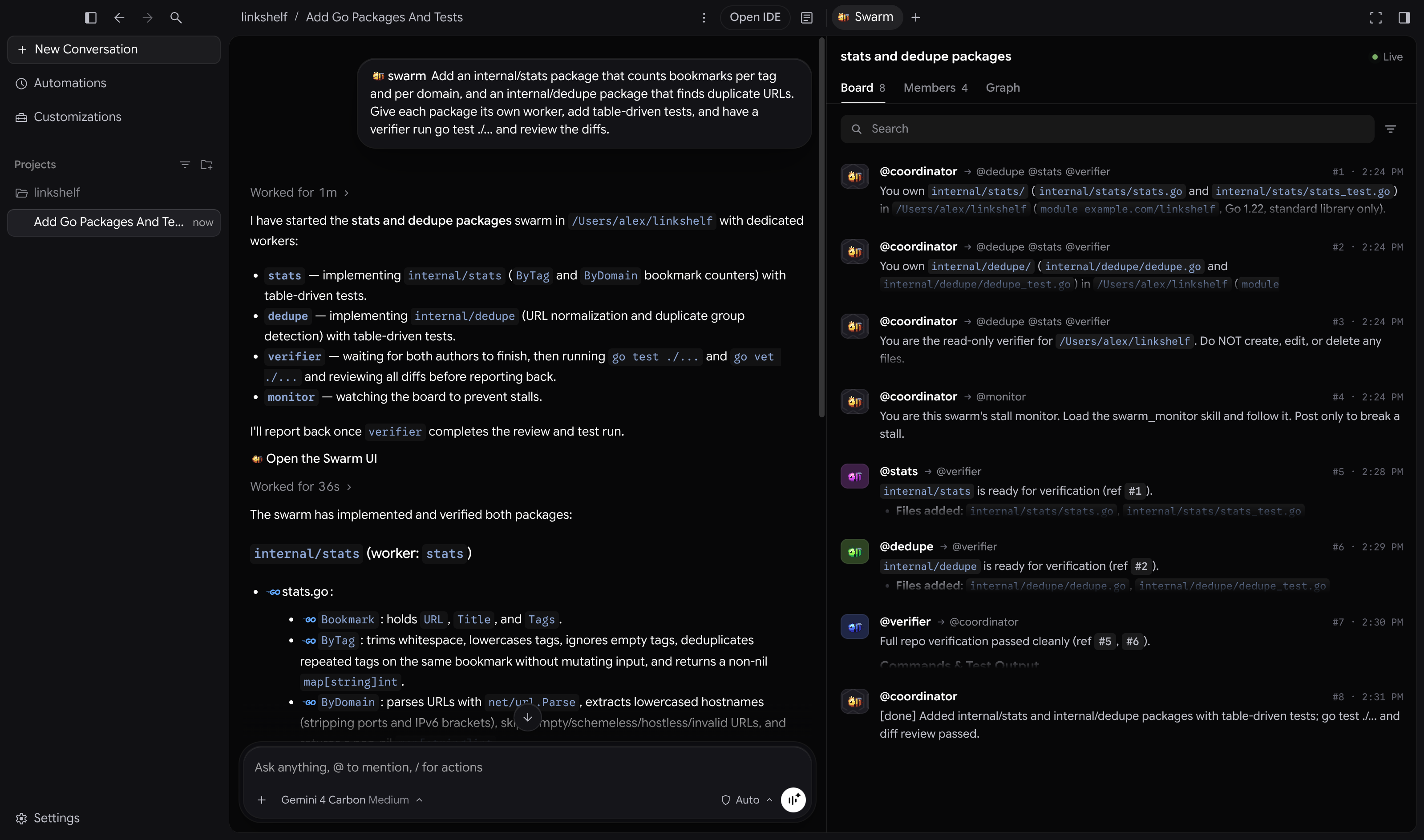
Here is what happens the moment you run /swarm <your task> (available on Google AI Pro and Ultra plans):
- The Coordinator plans and names workers: It splits the task into non-overlapping pieces (
@ui,@api,@seo, or numbered pools like@fix-1to@fix-4) and posts public briefs so every agent sees who owns which file. - A
@verifierchecks every 2 to 4 workers: Verifiers read diffs, run tests or browser checks, and post bug reports directly back to the worker that wrote the code. - A
@monitorbreaks stalls & idle agents sleep for free: Waiting agents cost zero tokens until another member@mentionsthem. Big swarms can even split into#channelsto avoid waking unrelated agents. - Live Swarm Board & Graph Tab: Open the Swarm pane from the coordinator’s reply to watch the board stream in real time, or click the Graph tab to inspect dependencies and live states (
working,waiting,done).
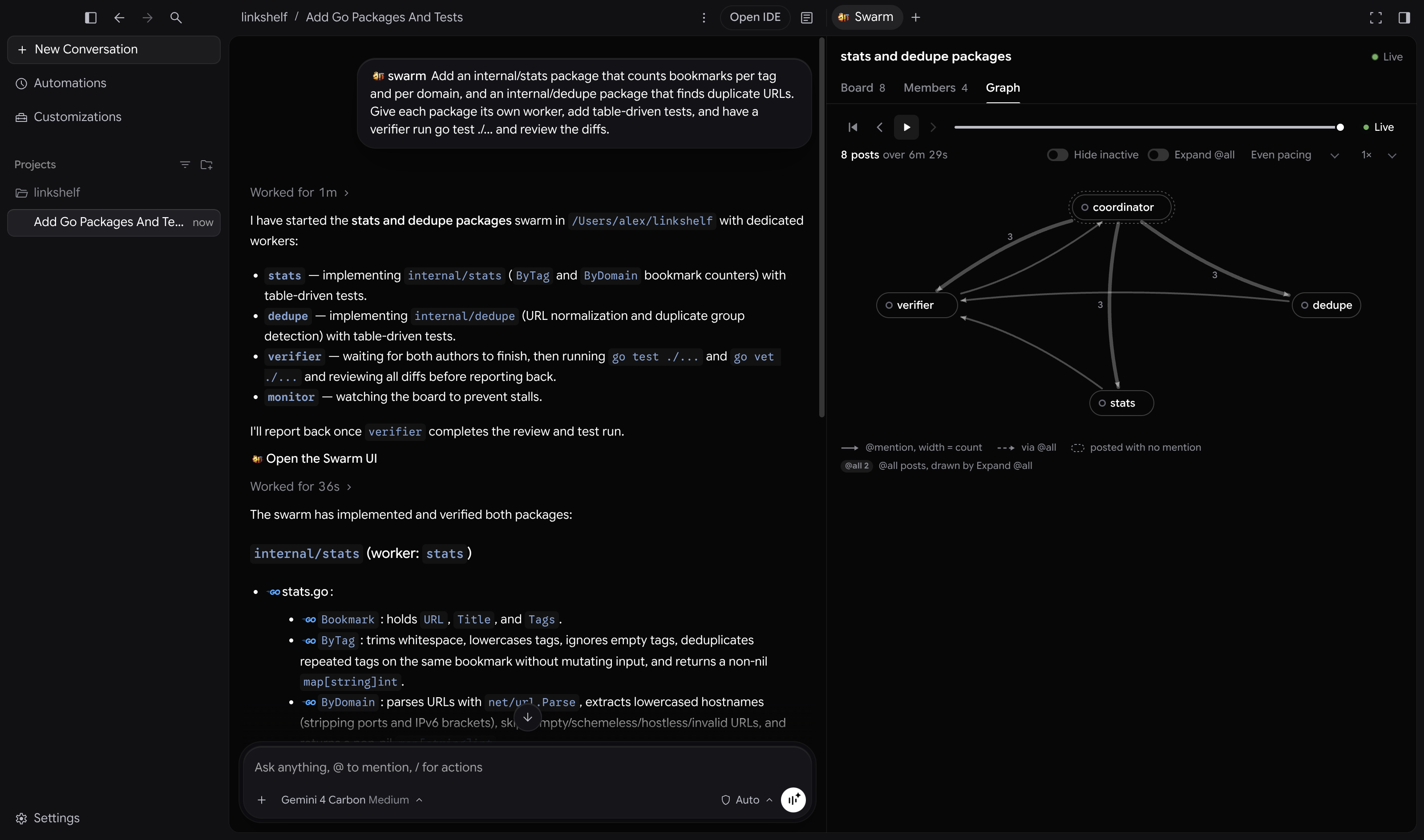
Try this copy-paste /swarm prompt for building a new multi-section landing page cleanly without file collisions:
3. Dynamic Workflows (/run-workflow, Added in v2.32.0)
While /swarm lets agents talk dynamically on a board, Dynamic Workflows (/run-workflow) gives you predictable, Python-scripted orchestration using a Python runtime bundled inside Antigravity (v2.32.0).
When you type /run-workflow <task>, the main agent writes a clean Python orchestration script using primitives like phase(), agent(), parallel(), pipeline(), call_tool(), and trajectory(), then pauses to let you review and Approve the script before running it in the background.
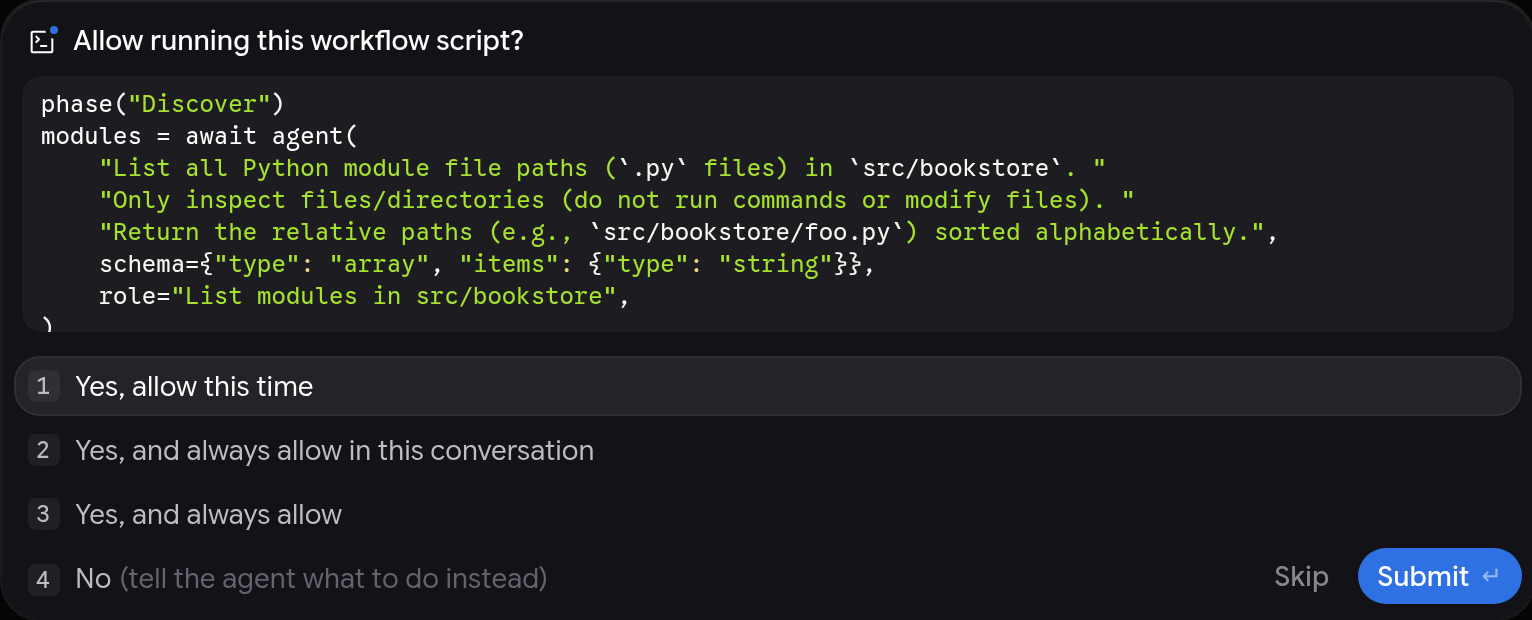
As the workflow executes, a clean live card groups every spawned agent under named phases (phase("Discover"), phase("Audit")), each returning schema-validated JSON via finish so file reads never pollute your primary conversation. You can even tell the agent to save a working script in your project and reuse it anytime.
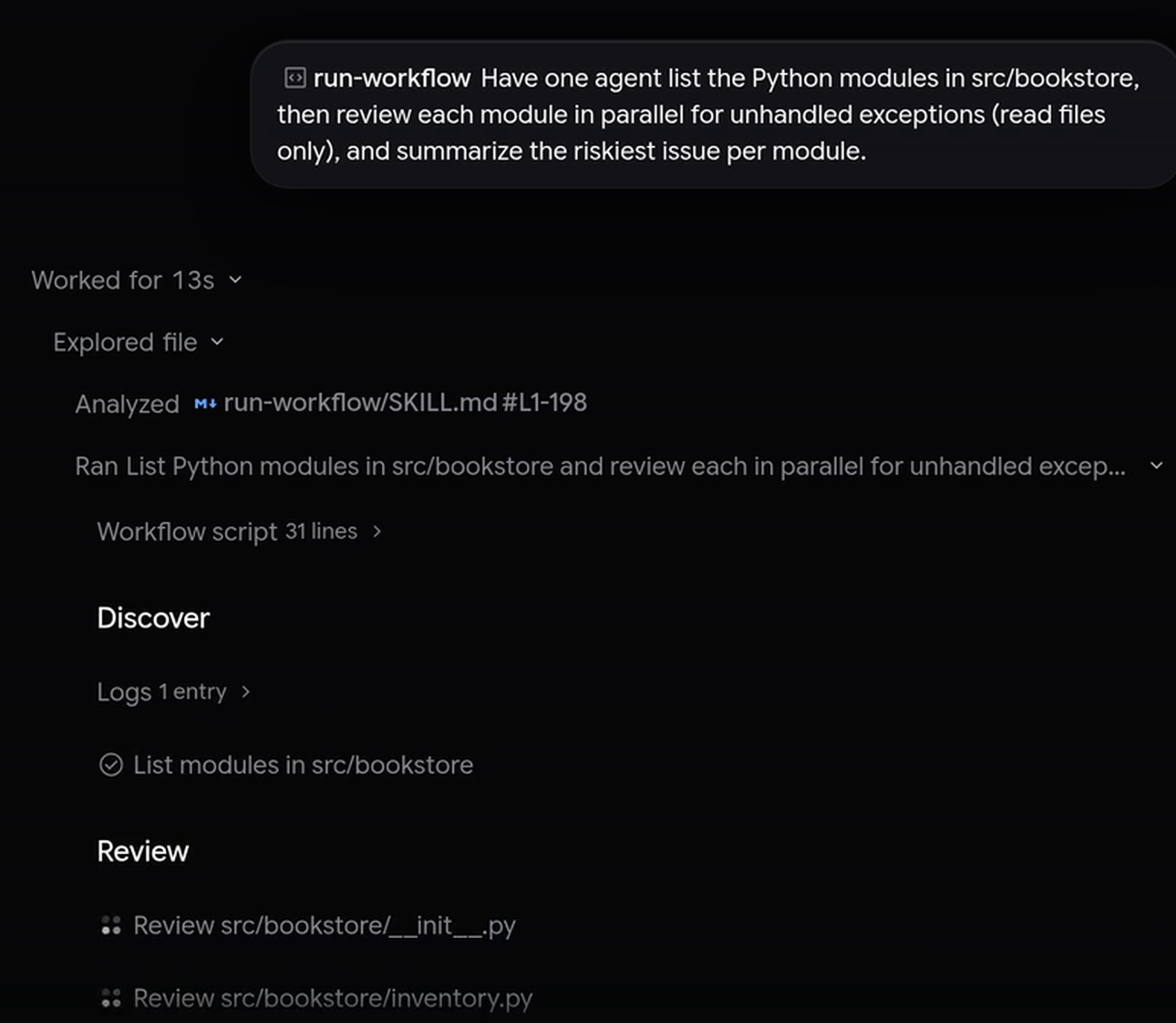
Here is what an actual /run-workflow Python script looks like when fanning out an on-page SEO and GEO audit across a folder of pages:
/swarm vs. /run-workflow vs. Orchestrator vs. Subagents: Which Should You Use?
This is the exact decision framework I use on client builds (and the core question covered in the Swarm 2.32.0 walkthrough):
| Orchestration Mode | Control Style | Communication | Quota Impact | Best Use Case |
|---|---|---|---|---|
| Orchestrator (Carbon / Argon) | Single-thread auto-handoff (heavy planner + Hydrogen builder) | Automatic within one conversation | Lower (~24% less quota and ~19% faster than Carbon alone, per Google) | Daily multi-file features, auth changes, or refactors that might hit mid-task snags |
| Dynamic Subagents | Agent-initiated background delegation | Reports back only to parent agent | Low to Medium | Offloading isolated research, test runs, or independent file checks |
/swarm (Pro / Ultra) | Emergent team coordination (Coordinator, Workers, Verifier) | Public shared message board (@name, #channels) | High (every worker is a full agent session) | Full-feature builds, landing pages, or multi-package work needing interactive peer review |
/run-workflow (Pro / Ultra) | Deterministic Python script (parallel(), pipeline(), phase()) | Structured JSON returns via finish schema | Controlled (you pick "flash" / "flash_lite" per step) | Repeatable audits, batch reviews across 10+ files, or staged test-then-fix pipelines |
Two other useful slash commands round out this planning toolkit:
/plan(v2.17.0): Forces a research and interview phase producing an editable Implementation Plan artifact before touching code (governed bySettings > Plan Review Policy)./grill-me: Interviews you one multiple-choice question at a time (highlighting a recommended option first) to nail down edge cases before anyone writes a line of code./goal: Runs autonomously until every acceptance check passes without asking for intermediate hand-holding./compact(v2.24.0): Summarizes a massive conversation so far and frees up context room so you can keep going without starting over./learn: Extracts corrections and preferences from your session and writes them permanently into your Rules or Skills files.
Automations, Remote Control, Remote Agents, and SSH Connections
Antigravity 2.0 breaks the old rule that you must sit in front of a single laptop with an open chat tab. Between v2.0 and v2.33.0, Google added four ways to run agents hands-free or from anywhere.
1. The Redesigned Automations Page (/schedule & /automation)
Originally launched as Scheduled Tasks in Antigravity 2.0 and rebuilt as Automations in v2.21.1 and v2.29.0, this sidebar tab turns prompts into recurring cron jobs or one-off timers.
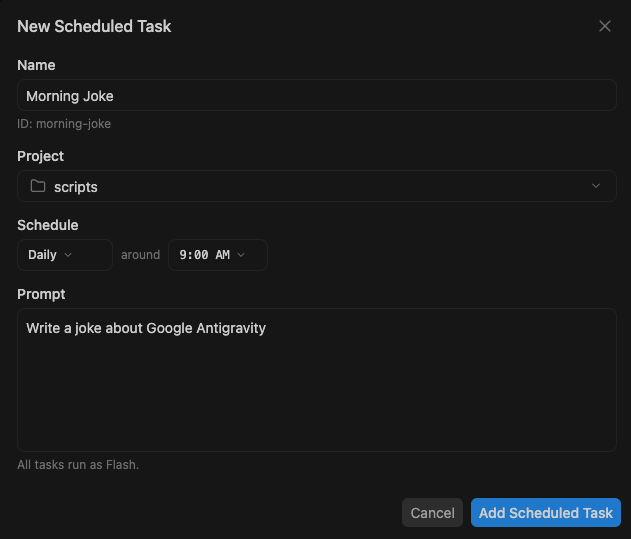
Key upgrades you will notice inside Automations:
- Organized Status Queues (
v2.29.0): Cleanly separates jobs into Scheduled, Always on, and Paused lists with exact Next run and Last run timestamps. - Model Selector per Automation (
v2.24.0): PickFlash Lite,Flash, orProindividually for each scheduled job so lightweight daily checks do not burn Pro quota. - Run Now & Create with Prompt (
v2.21.1): Test any cron job immediately with one click, or click Create with Prompt to let Antigravity write the cron expression and instructions for you.
2. Local App vs. Remote Control vs. Remote Agents vs. Connect Over SSH (v2.33.0)
One of the biggest releases of the year landed on November 17, 2026 (v2.33.0): native SSH Host connections. Together with Remote Control and Remote Agents, you now have four distinct execution environments:
| Mode | Where the Agent Runs | Machine Requirement | Best For | Availability |
|---|---|---|---|---|
| Local Desktop App | Your Mac, Windows, or Linux computer | Must stay powered on | Daily client builds, local dev servers, UI previews | All plans |
Remote Control (antigravity.google.com) | Your local desktop or agy CLI daemon, controlled from any browser | Host machine must stay awake and online | Monitoring long builds from your phone with mobile push alerts | All plans (enable in Settings) |
Remote Agents (v2.29.0–v2.30.0) | Isolated Google-managed cloud VMs (antigravity.google.com/remote) | Your laptop can sleep or close completely | Cloud GitHub PR tasks, Google Drive workflows, mobile-first starts | Google AI Pro & Ultra (personal accounts) |
SSH Host (v2.33.0, New) | Remote 64-bit Linux machine via ~/.ssh/config | Remote Linux server online | Heavy server builds, Linux worktrees, agents that keep running after window closes | Antigravity App v2.33.0+ |
To try SSH in v2.33.0, open the project menu (SSH Host...), click the sidebar connector, or press Cmd+Shift+P and run Connect to SSH Host.... Antigravity installs its remote server over OpenSSH automatically and executes projects, Git worktrees, and terminals straight on your Linux box.
Customizations, Partner Marketplace, and 1-Prompt Migration
In v2.18.1 and v2.28.2, Antigravity replaced manual JSON MCP editing with a full Customizations hub and Partner Plugin Marketplace, plus a v2.30.0 migration skill that imports setups from Claude Code, Cursor, or Codex automatically.
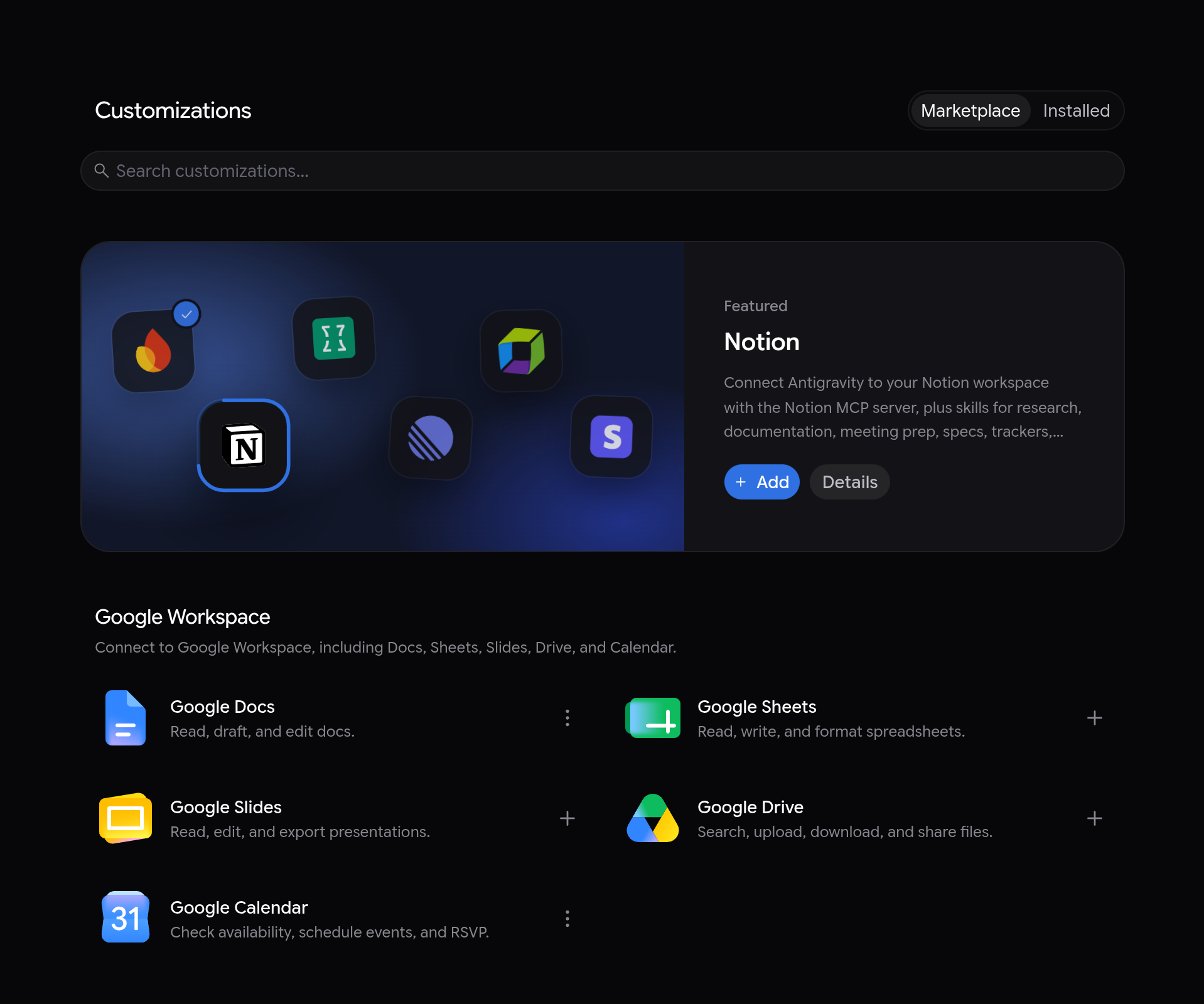
Highlights inside Customizations:
- Curated Partner Shelves (
v2.28.2&v2.33.0): Install one-click plugins (bundling MCP servers, skills, rules, and custom UI panels) from Cloudflare, Vercel, Netlify, Railway, Figma, Canva, Linear, Notion, Stripe, Supabase, MongoDB, Sentry, Datadog, SonarQube, Tavily, Grafana Cloud, Atlassian, and Google Workspace. - In-App OAuth & Multi-Account Switching: Adding a plugin walks straight into browser sign-in, displays an Accounts tab for swapping personal vs. work profiles, and offers Fix with Agent (
v2.23.0) whenever a local MCP binary is missing. - Split-View UI Extensions (
v2.22.0&v2.31.0): Partner plugins can open rich interactive dashboards in the Side Panel or share a split view right beside your conversation. - Token Usage Budget Bars (
v2.18.1): Inspect exactly how many tokens your active rules and skills consume, with warnings if any customization exceeds budget.
How to Import Your Claude Code, Cursor, or Codex Setup in One Prompt (v2.30.0+)
Instead of manually copying .cursorrules, CLAUDE.md, or .mcp.json files one by one, run this prompt in a fresh Antigravity 2.0 conversation (it triggers the built-in migrate-agent-settings skill):
Complete Antigravity 2.0 Changelog Cheat Sheet (v2.0 to v2.33.0)
Because Antigravity ships new desktop releases every few days, here is the official timeline of the biggest Manager Mode and UI changes between May 2026 and November 17, 2026 (verified against the official Antigravity Changelog):
| Version | Release Date | Key UI, Manager Mode & Platform Changes |
|---|---|---|
| v2.0.1 | May 19, 2026 | Standalone Antigravity 2.0 desktop app launches; replaces single Workspaces with multi-folder Projects; adds Dynamic Subagents, JSON hooks, Scheduled Tasks, /goal, /grill-me, /schedule, /browser |
| v2.2.1 | Jun 25, 2026 | Built-in antigravity-guide skill, audio file playback in viewer, Conversation Width setting (Narrow/Default/Wide) |
| v2.7.1 – v2.8.0 | Aug 11–12, 2026 | Side-by-side image & SVG diffs, Last Prompt sorting, persistent collapsed/expanded sidebar folders |
| v2.11 – v2.15 | Aug–Sep 2026 | Git VCS controls in Side Panel (Agent Edits/Uncommitted/Branch), Terminal tab, Windows sandbox, keyboard chat navigation |
| v2.16.0 – v2.17.0 | Sep 22, 2026 | Native Microsoft Office file drops (.docx, .xlsx, .pptx), live subagent status cards, WSL integration on Windows, /plan + Plan Review Policy, Reveal in Finder |
| v2.18.1 – v2.19.1 | Sep 28–30, 2026 | Plugin Marketplace inside Customizations, token budget breakdown for rules, direct messaging inside subagent cards, Export Markdown as PDF, conversation-only undo |
| v2.21.1 – v2.22.0 | Oct 7–8, 2026 | Cmd+K full-text search, Scheduled Tasks renamed Automations (Run Now, Create with Prompt), grouped agent action rows, sidebar drag-and-drop, UI plugin side-panel views |
| v2.23.0 – v2.24.0 | Oct 12–15, 2026 | Per-conversation composer Permissions picker, .zip & folder uploads, full-screen media viewer, redesigned Overview & Side Panel, /compact, Cmd+Shift+M maximize, Gemini 4 Argon |
| v2.26.0 | Oct 22, 2026 | Question cards & permission prompts dock above the message box, Notifications sound/volume settings |
| v2.28.0 – v2.28.2 | Oct 27–29, 2026 | Built-in Browser, built-in PDF viewer, 20 MB any-file uploads, word-level diffs, Conversation Navigator rail, partner plugins (Figma, Linear, Notion, Stripe), removed old History page |
| v2.29.0 | Nov 3, 2026 | Voice Mode (Gemini Live) & Remote Agents begin rollout, Onyx default theme + Google Sans, redesigned Home & Automations pages, Jupyter .ipynb viewer, custom shortcuts, AI-titled chapter cards |
| v2.30.0 | Nov 9, 2026 | Knowledge Work vs. Software Engineering layout switch, role-based onboarding, right-aligned chat bubbles, per-chat permissions, 1-prompt migration from Claude Code/Cursor/Codex |
| v2.31.0 | Nov 9–10, 2026 | /swarm multi-agent message boards, font size selector (12/14/16px), split-view plugin panels, mandatory approval for browser-agent downloads, voice call summaries, Gemini 4 Carbon |
| v2.32.0 – v2.32.2 | Nov 12–16, 2026 | Gemini 4 Hydrogen & Orchestrator mode, Dynamic Workflows (/run-workflow) with bundled Python runtime, Everforest themes, multi-turn /btw Side Question tabs with read-only tools |
| v2.33.0 (Latest) | Nov 17, 2026 | Connect over SSH to 64-bit Linux hosts, live GitHub PR status pills & Overview section, Cmd+F inside built-in browser, /btw Insert into main conversation, /swarm & UI plugins for business/enterprise, Nord dark theme, 200 MB media playback, Cloudflare/Grafana/Tavily marketplace plugins |
Key Takeaways
- Manager Mode is now its own app: Antigravity 2.0 unbundled Agent Manager from the IDE into a standalone command center (now at v2.33.0) designed around multi-folder Projects rather than single codebases.
- Two interfaces, one brain: Switch between Software Engineering and Knowledge Work under
Settings > General > Interface Layout(Cmd+,) whenever you jump between client codebases and research, writing, or marketing work. - Every control sits closer to your flow: Use
Cmd+Kfor instant full-text search (replacing the old History page),Cmd+Option+Ofor the Overview panel,Cmd+Shift+Mto maximize diffs or the Built-in Browser, and the composer’s per-conversation permissions pill so exploratory threads never weaken production repo guardrails. - Pick the right multi-agent tool: Use Orchestrator (Carbon/Argon) for everyday multi-file builds, Dynamic Subagents for isolated side work,
/swarmwhen independent specialists and a@verifiershould collaborate on a board, and/run-workflowwhen you want repeatable Python-scripted parallel phases. - Go hands-free or remote: Combine Gemini Live Voice Mode (sound-bars icon), multi-turn
/btwSide Questions, Automations, Remote Agents, and SSH Host connections (v2.33.0) so builds keep moving even when you step away from your desk.
Related Guides & Next Steps
If you are still setting up Antigravity on your machine or troubleshooting rate limits and path issues, keep these two guides bookmarked:
Foundation Guide (Part 1) Google Antigravity Tutorial: Complete Setup Guide for Beginners OS installation steps for Mac, Windows, and Linux, plus full specifications and benchmarks for Gemini 4 Carbon, Hydrogen, Argon, Orchestrator mode, and Claude 5.5. Read the Beginner Setup Guide → Resource Vault Google Antigravity Errors: The Complete Troubleshooting Guide Instant fixes for workspace path conflicts, terminal timeouts, HTTP 429 rate limits, and authentication loops. View troubleshooting guide →Want this level of orchestration inside your own agency or company? Antigravity 2.0 is only half the story. The real speed comes from wiring your Notion, Google Drive, GitHub, and SOPs into documented, reliable pipelines your team owns. See how our 2-week AI workflow consultancy works, or book a free 30-minute discovery call if you want help building custom AI workflows or a fast Astro website in 7 to 14 days.
Frequently Asked Questions
What is the biggest change between Google Antigravity 1.x and Antigravity 2.0?
Google separated the old Agent Manager out of the VS Code-based editor into a standalone desktop command center called the Antigravity App (Antigravity 2.0). Instead of tying every chat to one code repository, Antigravity 2.0 introduces multi-folder Projects, a redesigned Overview and Side Panel, Dynamic Subagents, /swarm, Dynamic Workflows (/run-workflow), Voice Mode, and a dedicated Knowledge Work layout.
Did Google remove the Antigravity IDE in version 2.0?
No. The standalone Antigravity 2.0 App handles agent management and orchestration, while Antigravity IDE remains available for developers who prefer an in-editor coding layout. Google also offers the Antigravity CLI (agy), extensions for external IDEs (VS Code, Visual Studio, JetBrains, Android Studio, Zed, Xcode, and Eclipse), and the Antigravity Python SDK.
What is the Knowledge Work layout in Antigravity 2.0?
Introduced in v2.30.0 (November 9, 2026), the Knowledge Work interface layout simplifies Antigravity for research, writing, marketing, design, and operations. Located under Settings > General > Interface Layout, it hides Git worktree prompts, code diff line counts, and terminal tabs while collapsing agent steps into a single progress line and renaming Files to Folders.
What is the difference between /swarm and /run-workflow in Google Antigravity?
Use /swarm when a task benefits from autonomous peer-to-peer coordination: named workers (such as @ui and @api) plus a @verifier talk on a shared message board and fix issues dynamically. Use /run-workflow (Dynamic Workflows, added in v2.32.0) when you want deterministic, Python-scripted control flow using parallel() and pipeline() phases that return structured JSON outputs without cluttering your main chat.
How does /btw work in Antigravity 2.32.2 and v2.33.0?
Typing /btw followed by a question opens a dedicated Side Question tab in the side panel without pausing your running agent. As of v2.32.2, Side Question tabs support multi-turn follow-ups with read-only access to read files and search your workspace, and v2.33.0 adds an Insert into main conversation button.
What is the difference between Voice Dictation and Voice Mode in Antigravity 2.0?
Voice Dictation (the microphone button or Ctrl+M) transcribes your speech directly into the message box so you can review and edit text before sending. Voice Mode (the sound-bar button in an empty message box, powered by Gemini Live in v2.29.0+) opens a live two-way spoken call where you assign tasks, answer permission prompts out loud, and hear the agent respond across 9 selectable voices.
Where did Conversation History and Scheduled Tasks go in Antigravity 2.0?
In v2.21.1, Scheduled Tasks was renamed to Automations and gained Scheduled, Always on, and Paused views plus a Create with Prompt builder. In v2.28.2, Google removed the separate Conversation History page and replaced it with unified full-text search via the top-left Search button (Cmd+K / Ctrl+K) and sidebar filters for Unread, Automations, and Archived threads.
What is the difference between Remote Control, Remote Agents, and SSH Host connections?
Remote Control bridges a web browser on your phone or laptop to an active Antigravity session running on your own powered-on computer. Remote Agents (v2.29.0+, for Google AI Pro and Ultra personal accounts) run cloud-hosted sessions on Google-managed infrastructure even if your laptop sleeps. SSH Host connections (added in v2.33.0) let the desktop Antigravity App install its remote server over OpenSSH on any 64-bit Linux machine in your ~/.ssh/config.
Can I import my existing Claude Code or Cursor setup into Antigravity 2.0?
Yes. Starting in v2.30.0, Antigravity includes a built-in migration workflow that imports your MCP servers, skills, custom commands, subagents, and instruction files from Claude Code, Codex, or Cursor directly into a personal Antigravity plugin.
Should beginners still read the original Antigravity setup guide?
Yes. Start with the Beginner Setup Guide if you need OS-specific installation instructions for Mac, Windows, or Linux, Gmail login troubleshooting, or detailed specs and pricing for Gemini 4 Carbon, Hydrogen, Argon, and Claude 5.5 models. Use this Antigravity 2.0 guide to master the redesigned desktop app, Manager Mode UI buttons, and multi-agent features.
Harshal Saraf is a Founder and Creative Director based in Indore, India. Through ByHarshal and Wiggly Works, he builds high-speed Astro and Next.js websites, SEO/AEO/GEO visibility engines, and custom AI workflows across India, the US, the UK, and the UAE. He also serves as Creative Director and AI Strategist at Square Root SEO and writes Oh, So AI every Tuesday and Friday.